Advanced User Guide
Course Tracking Settings
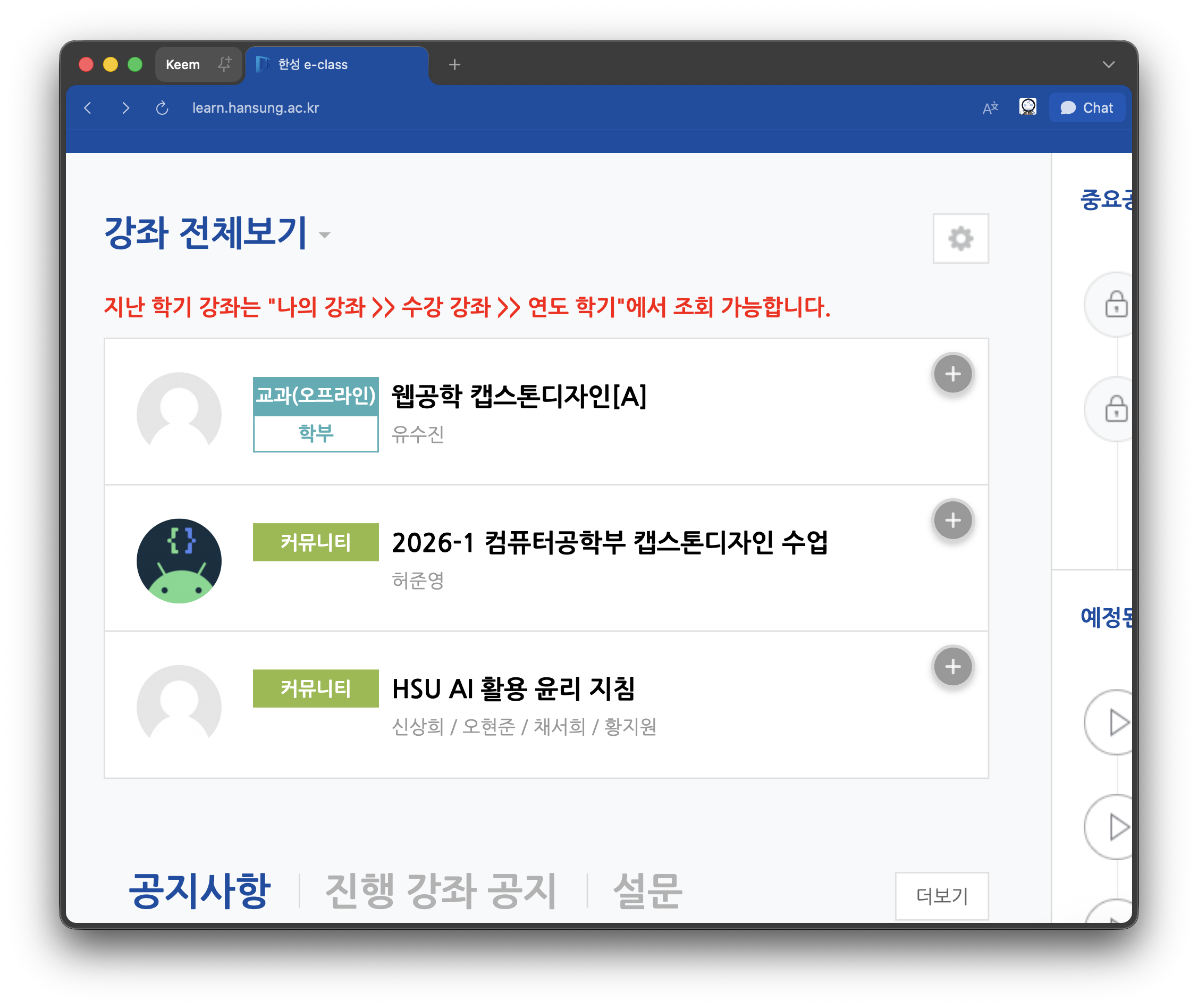
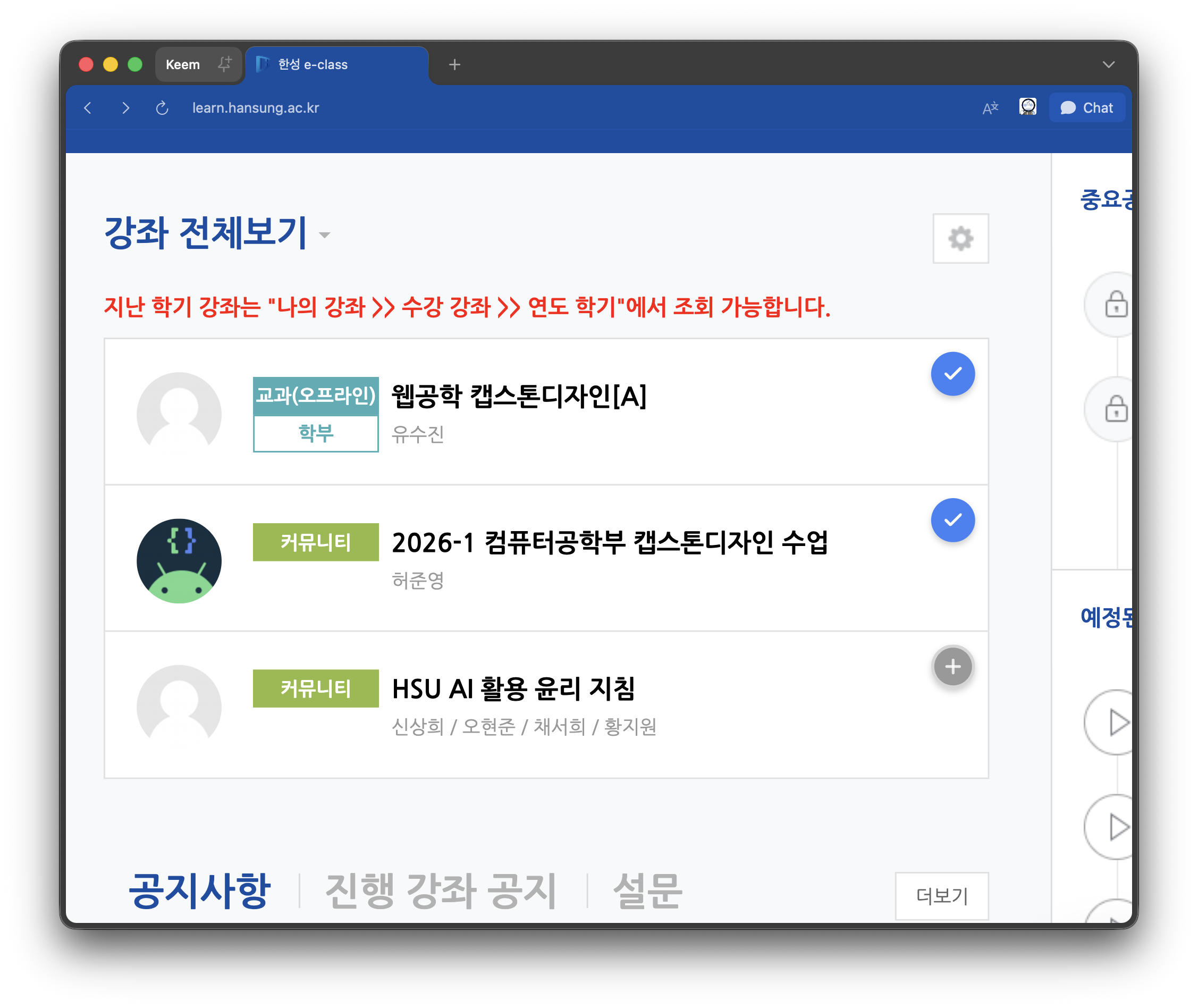
A tracking toggle button is displayed on each course card on the LMS main page.
- Blue check: Tracking enabled — tasks will appear on the dashboard.
- Transparent: Tracking disabled — hidden from the dashboard.
By default, all regular courses are tracked, and extracurricular courses are excluded.
| Before Tracking | After Adding Tracking |
|---|---|
 |  |
Search and Filter
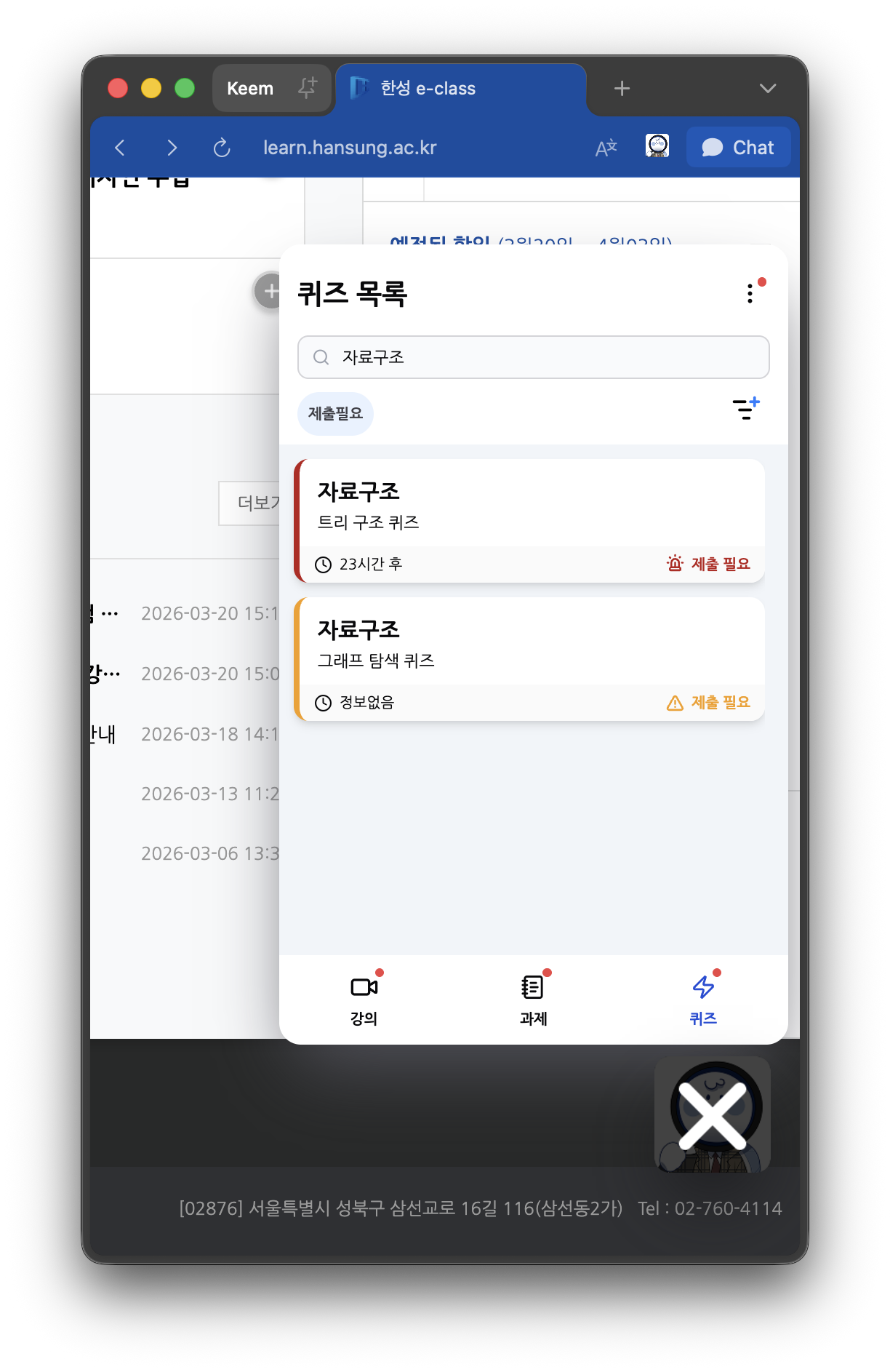
You can search by course name or title using the search bar at the top.
Filter options:
- By course: Show only specific courses
- By status: Filter completed/incomplete items
When a filter is applied, a "Filter applied" indicator appears.
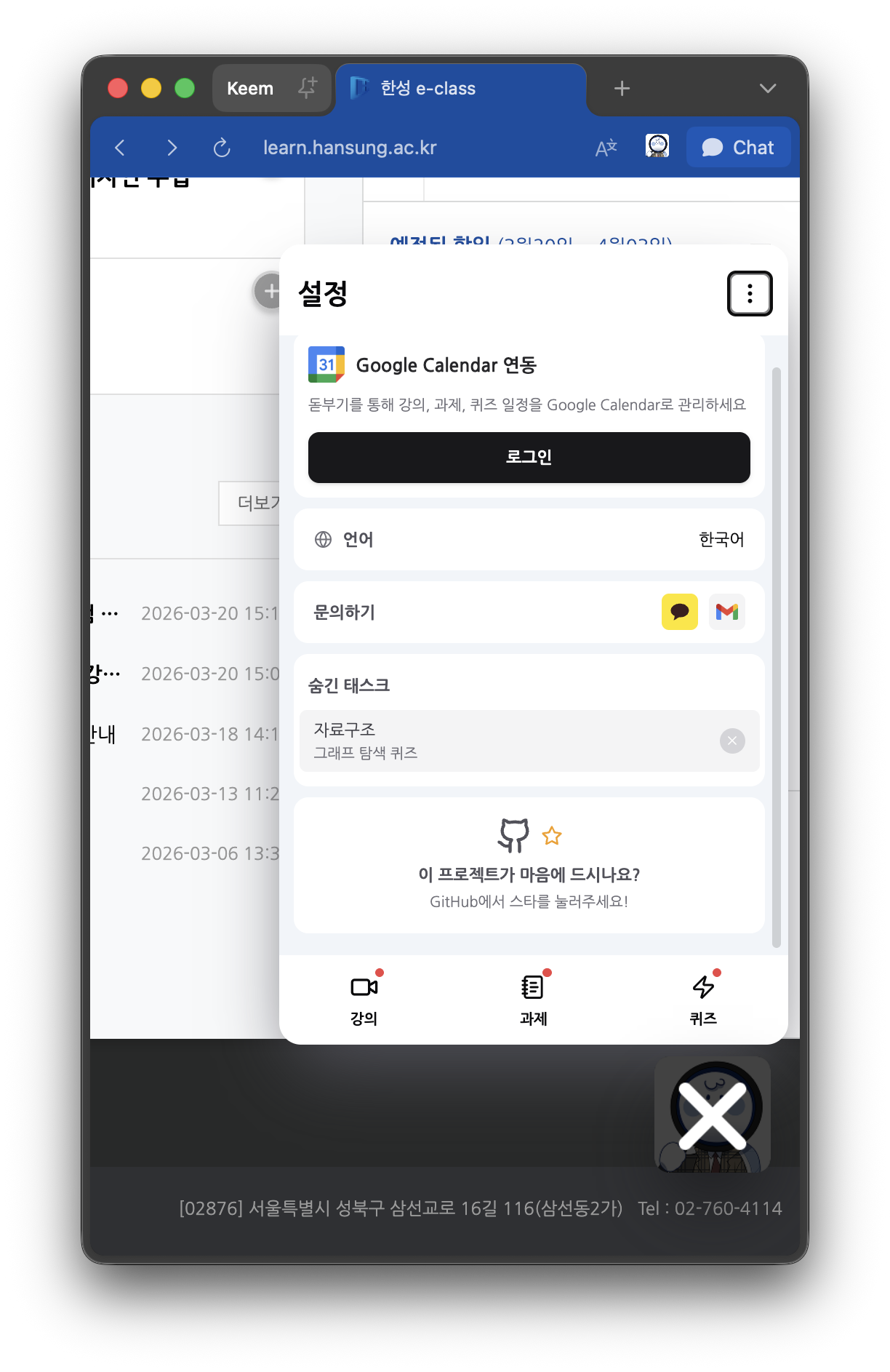
Hiding Tasks
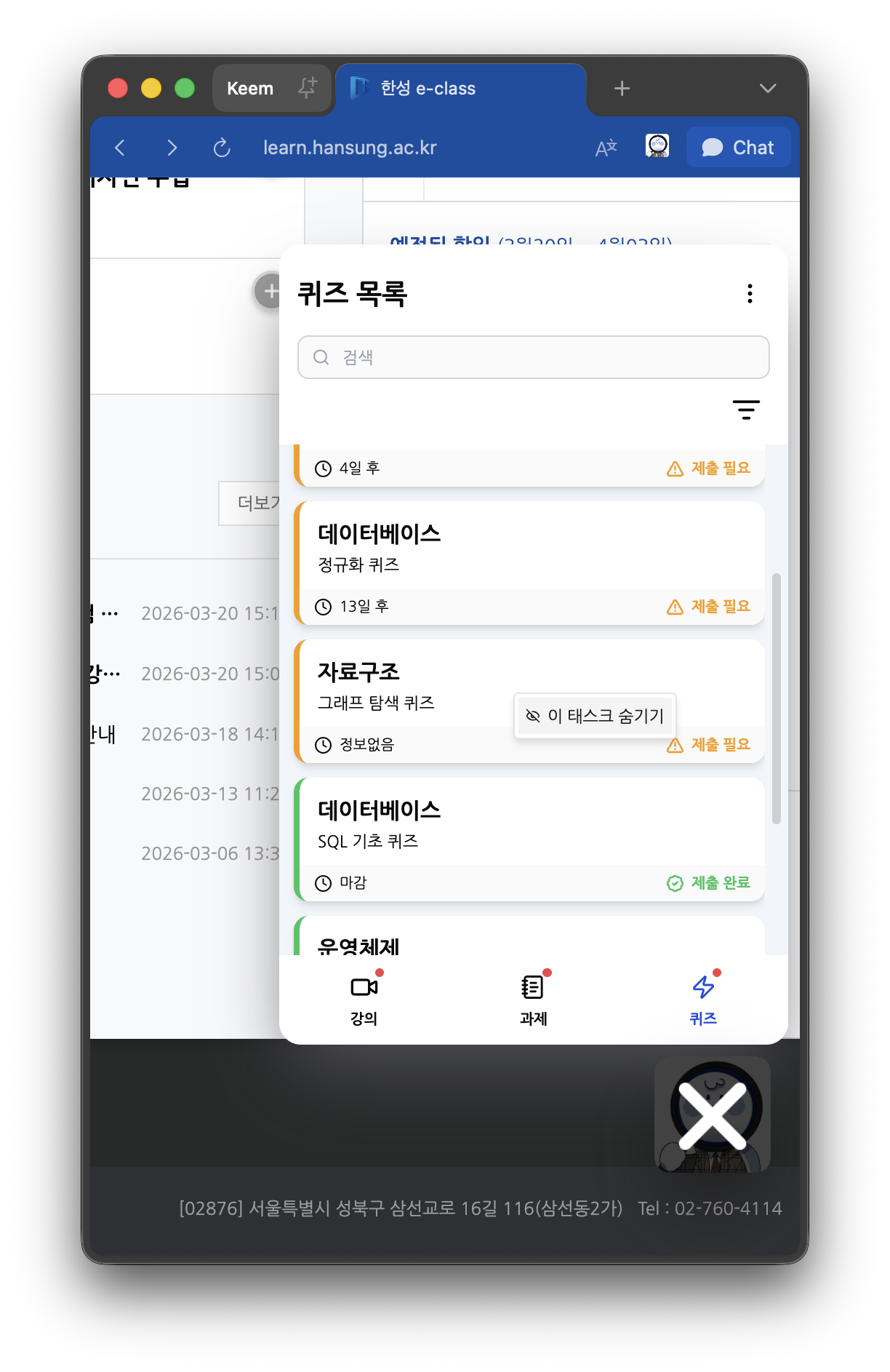
You can hide items that you have already checked or no longer need.
- Right-click a card → Select "Hide this task"
- Right-click a course group header to hide all items for that course at once.
Hidden items can be viewed and restored in the "Hidden Tasks" section of the Settings tab.
| Hide | Unhide |
|---|---|
 |  |
Course Page Status Badges
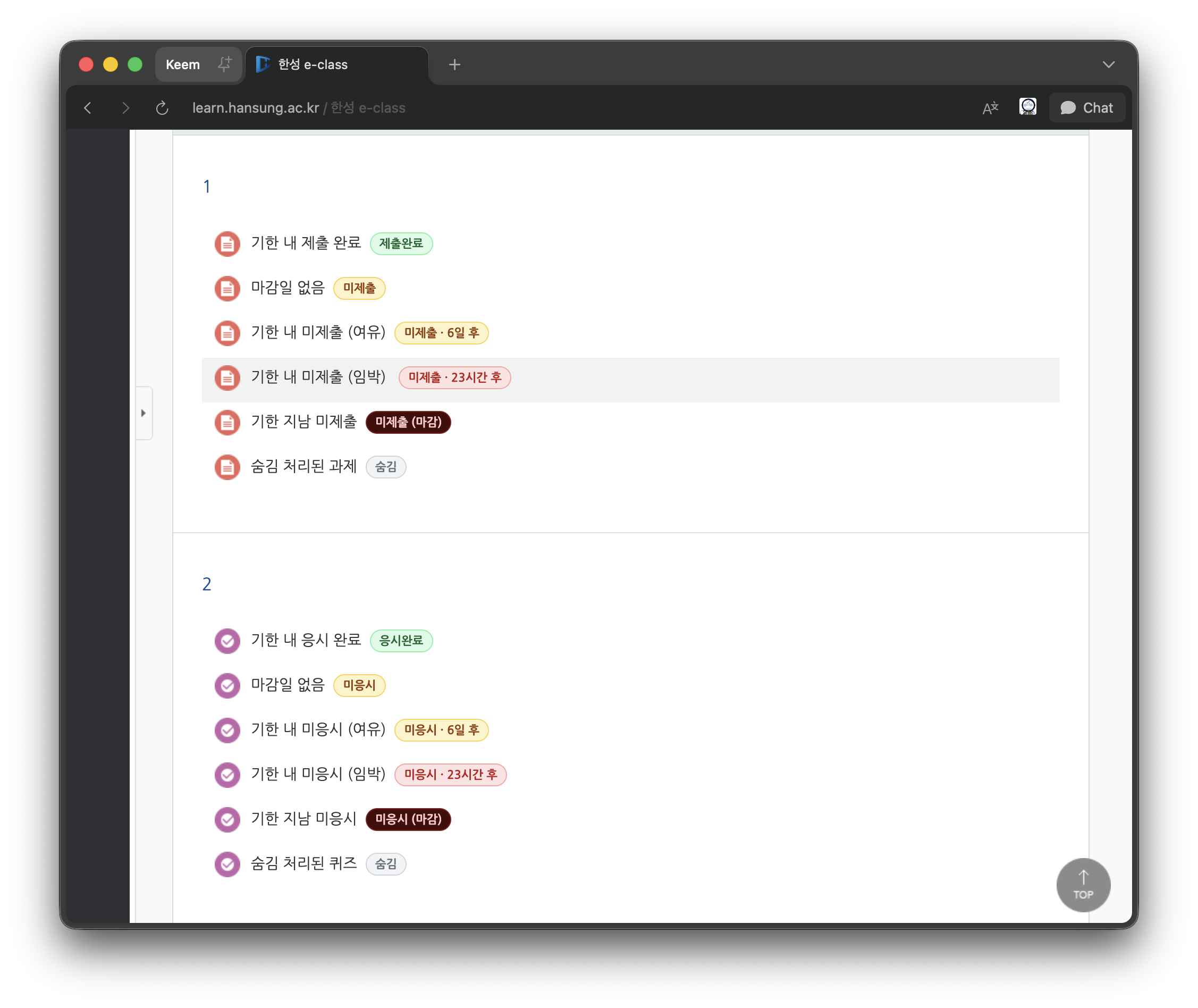
Status badges are displayed next to activities (lectures/assignments/quizzes) on each course page.
Lectures (VOD)
| Badge | Status | Meaning |
|---|---|---|
| Attended | Attended | Watched for the required attendance time or more |
| Watching · In 11 days | Watching | Partially watched (progress visualized) |
| Watching · In 23 hours | Watching (urgent) | Partially watched + less than 24 hours until deadline |
| Not Watched · In 6 days | Not Watched | Not yet watched |
| Not Watched · In 23 hours | Not Watched (urgent) | Less than 24 hours until deadline |
| Absent | Absent | Past due |
| Hidden | Hidden | Item has been hidden |
Watching Badge
The watching badge calculates and displays progress based on the study time data from the progress page.
Assignments / Quizzes
Assignments
| Badge | Meaning |
|---|---|
| Submitted | Assignment submitted |
| Not Submitted · In 6 days | More than 1 day until deadline |
| Not Submitted · In 23 hours | Less than 24 hours until deadline |
| Not Submitted (Closed) | Past due |
| Hidden | Item has been hidden |
Quizzes
| Badge | Meaning |
|---|---|
| Taken | Quiz completed |
| Not Taken · In 6 days | More than 1 day until deadline |
| Not Taken · In 23 hours | Less than 24 hours until deadline |
| Not Taken (Closed) | Past due |
| Hidden | Item has been hidden |
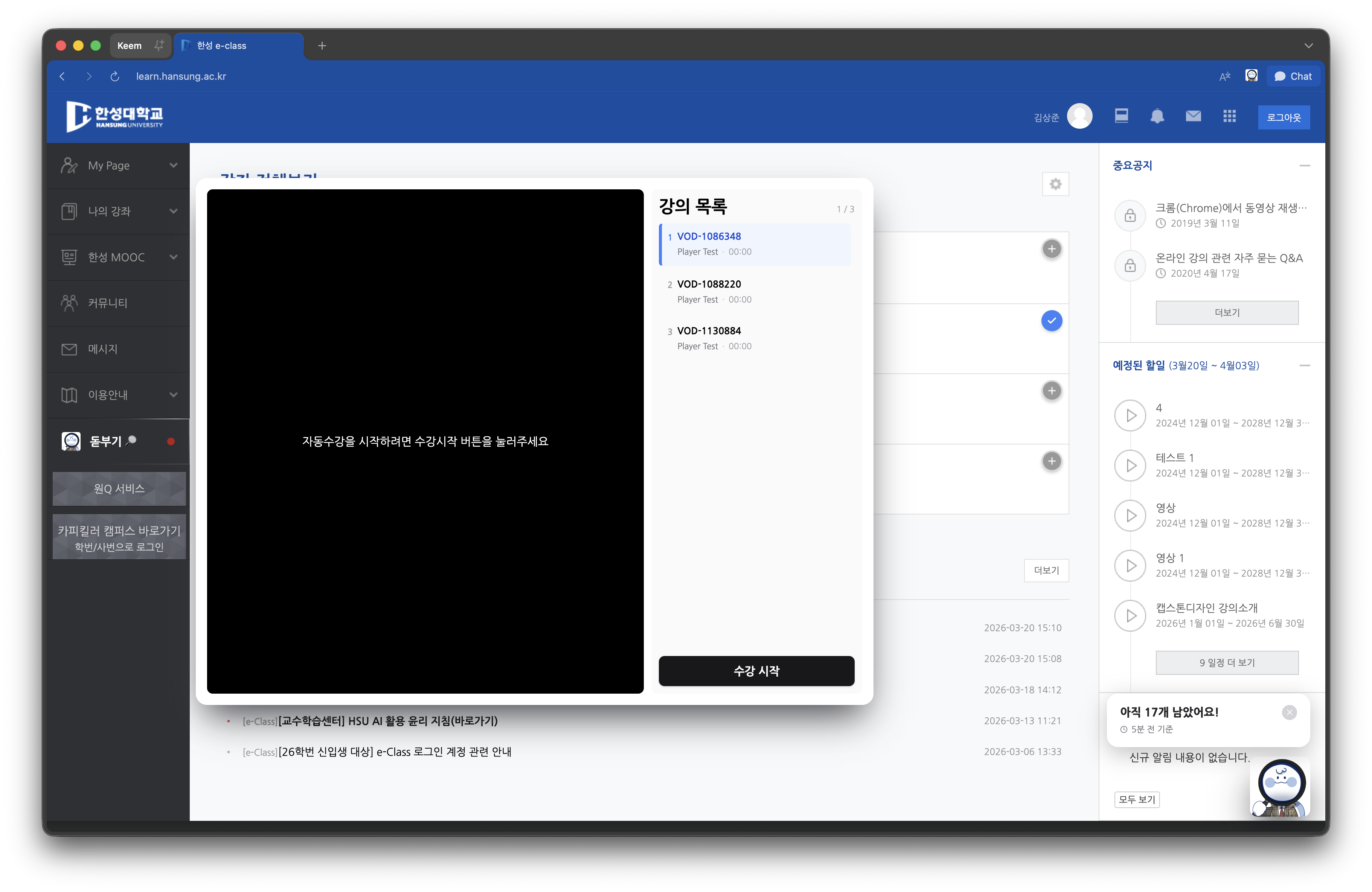
Auto-Play Player
How is this different from speed-up programs?
Dotbugi's auto-play does not change video speed or manipulate playback time. It plays at normal speed (1x) and simply provides the convenience of playing multiple lectures in sequence without manual clicks. Since the playback time and study time recorded in the LMS are identical, it has no impact on attendance criteria.
Smart Playback
- Lectures already marked as attended are automatically skipped.
- If there is a previous watch position, playback resumes from that point.
Estimated End Time
During playback, the estimated end time for the remaining lectures is displayed on the button.
Changing Playback Order
You can change the playback order by dragging and dropping lectures in the sidebar list.
Page Leave Warning
A warning is displayed when you try to leave the page during auto-playback.
Refresh
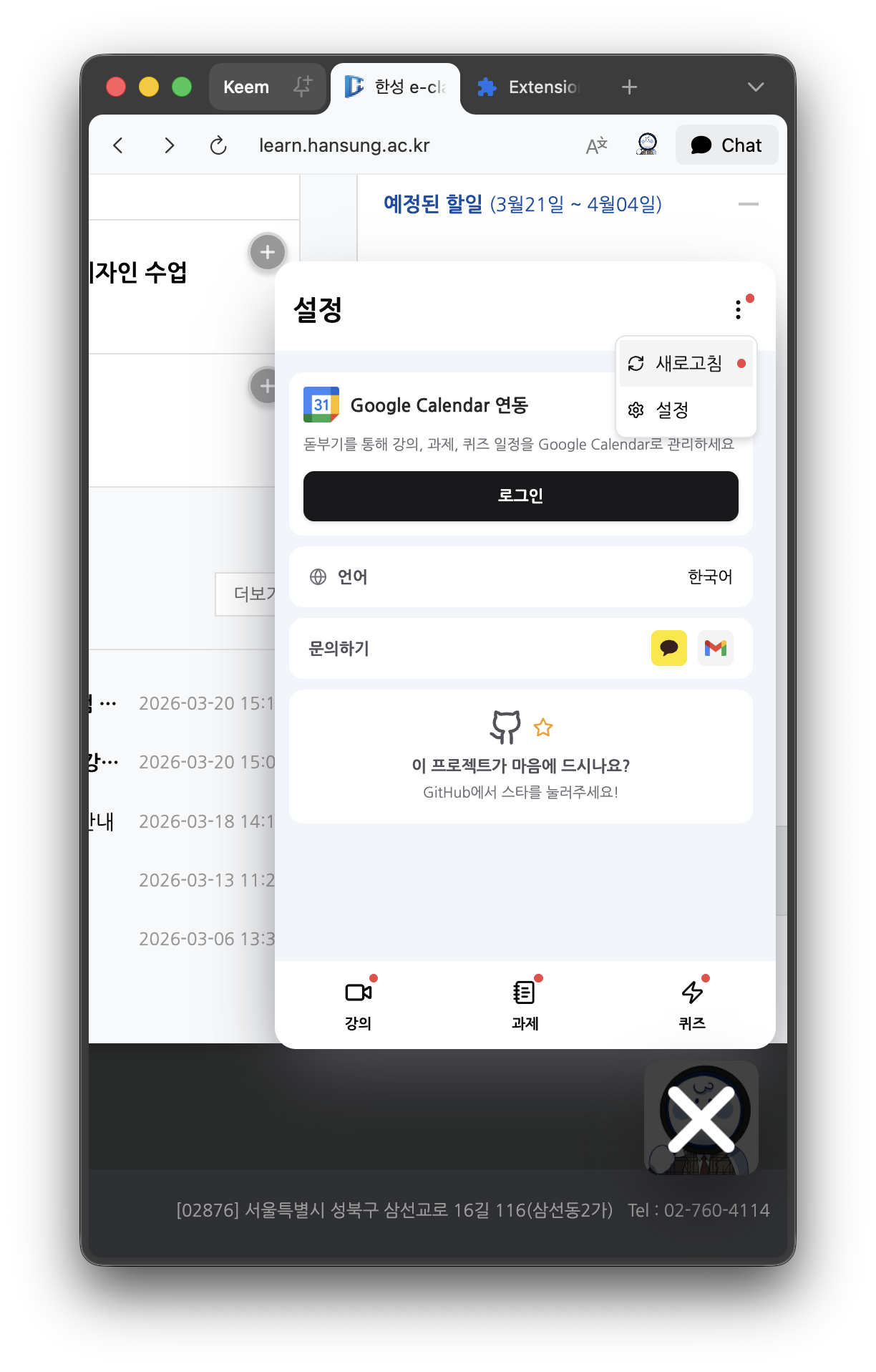
You can refresh the data using the refresh button in the dropdown menu. A red dot appears when 5 minutes have passed since the last refresh. Data is automatically refreshed after 1 hour.
Contact
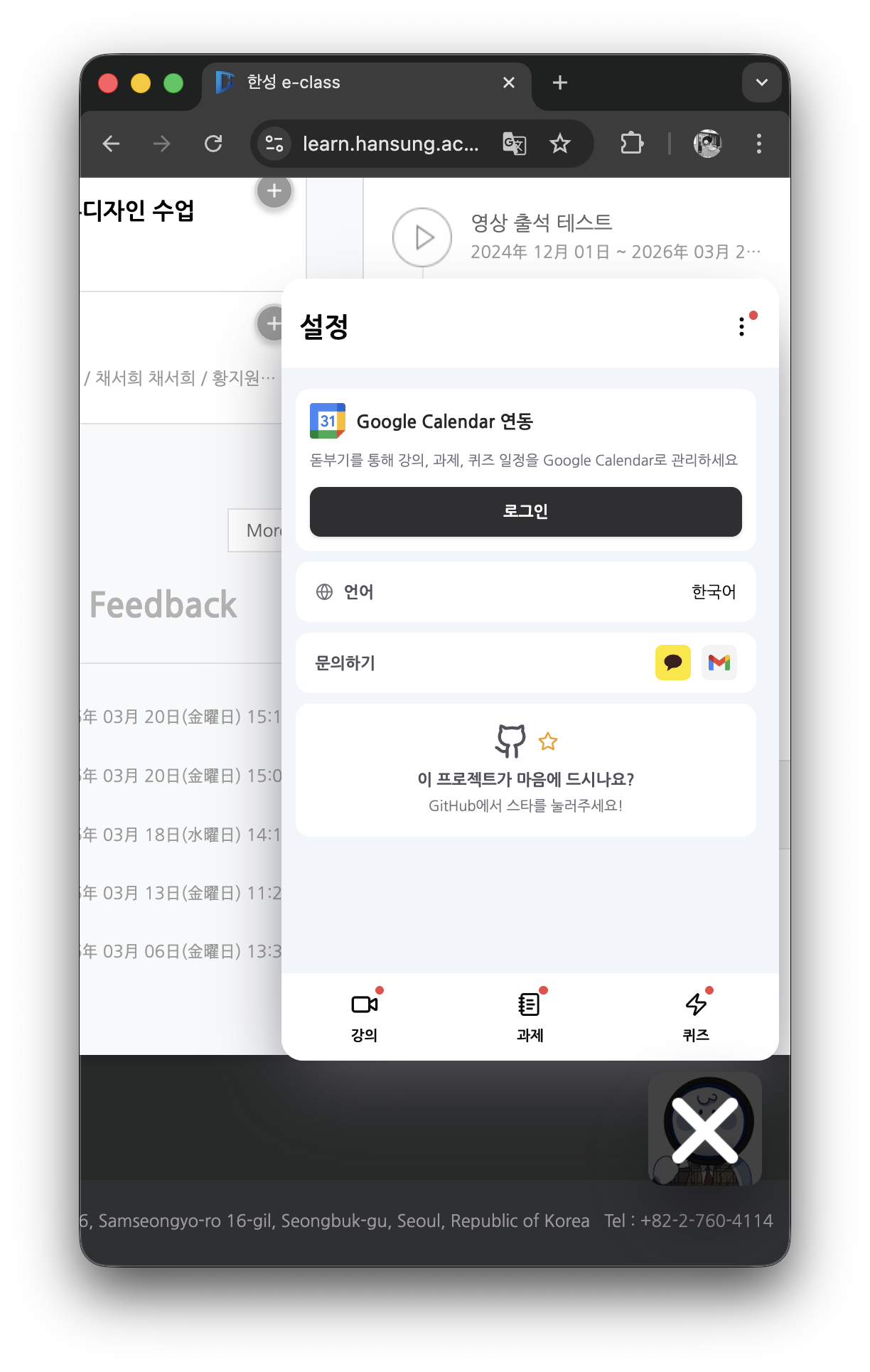
You can contact us via email or KakaoTalk open chat at the bottom of the Settings tab.