Basic User Guide
Installation
- Search for HSU Dotbugi on the Chrome Web Store.
- Click the Add to Chrome button.
- After installation, navigate to the university LMS (learn.hansung.ac.kr).
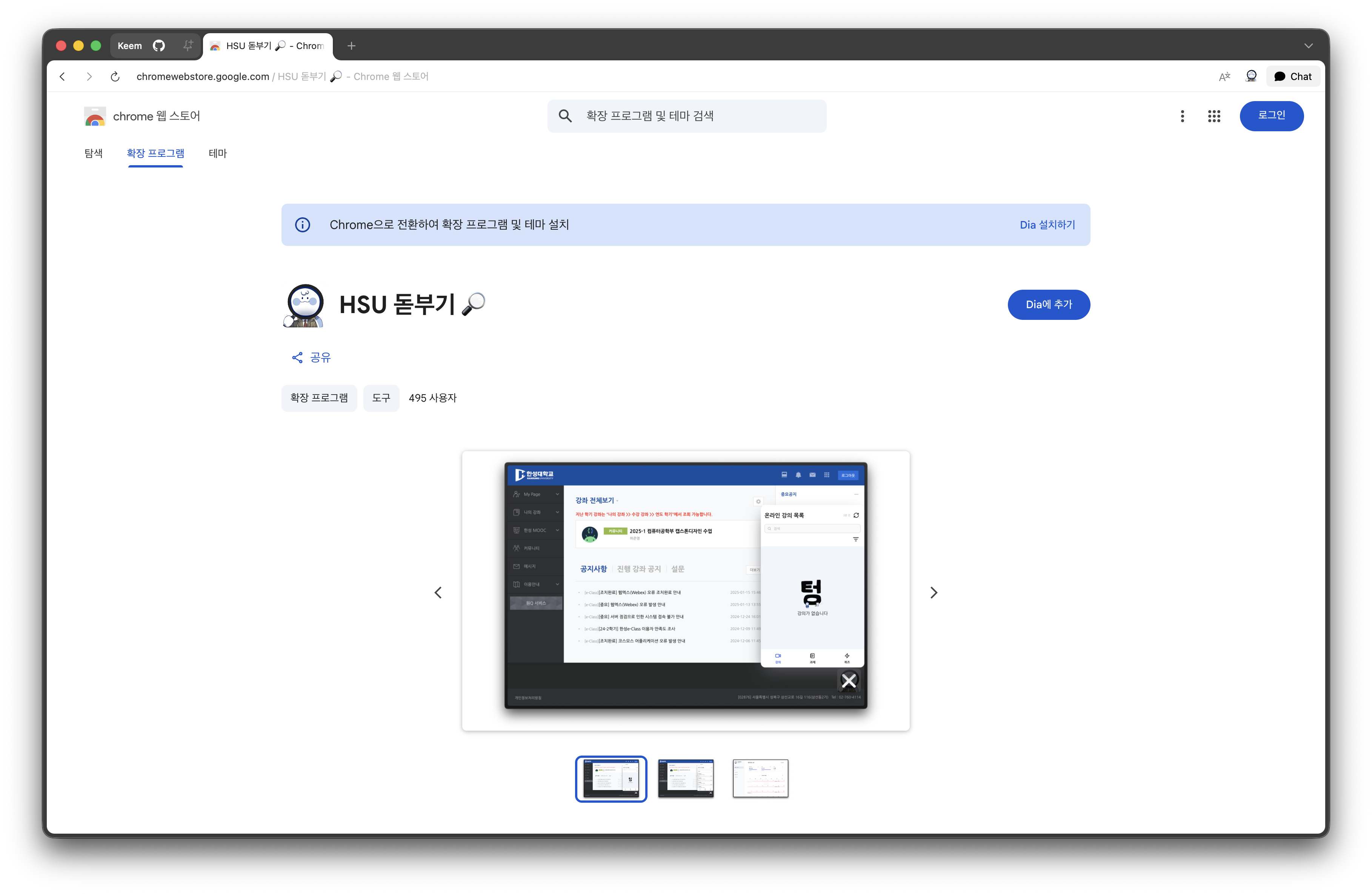
First Launch
Once installed, a Dotbugi button will appear at the bottom-right of the LMS page. Click it to open the dashboard.
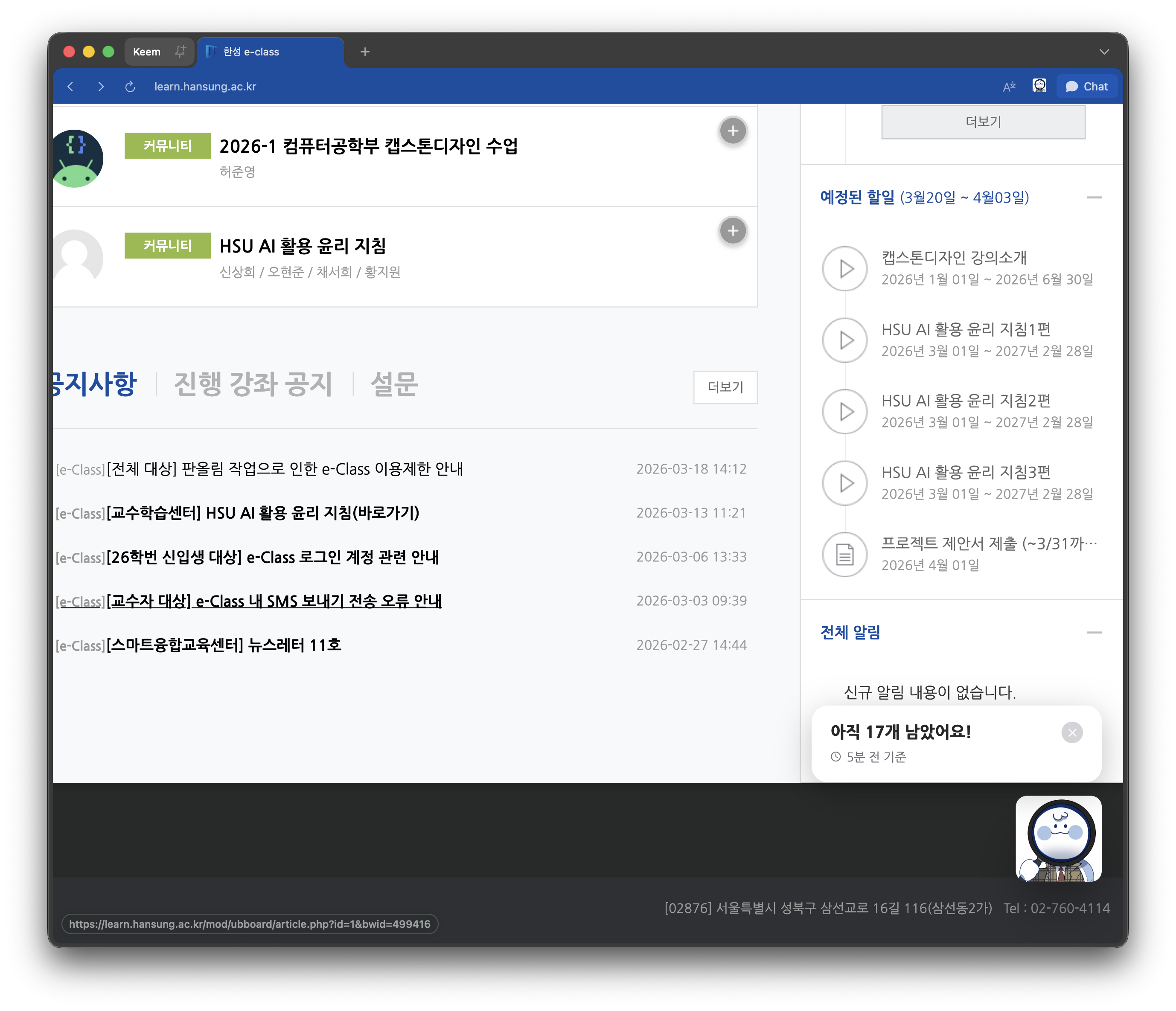
Dashboard
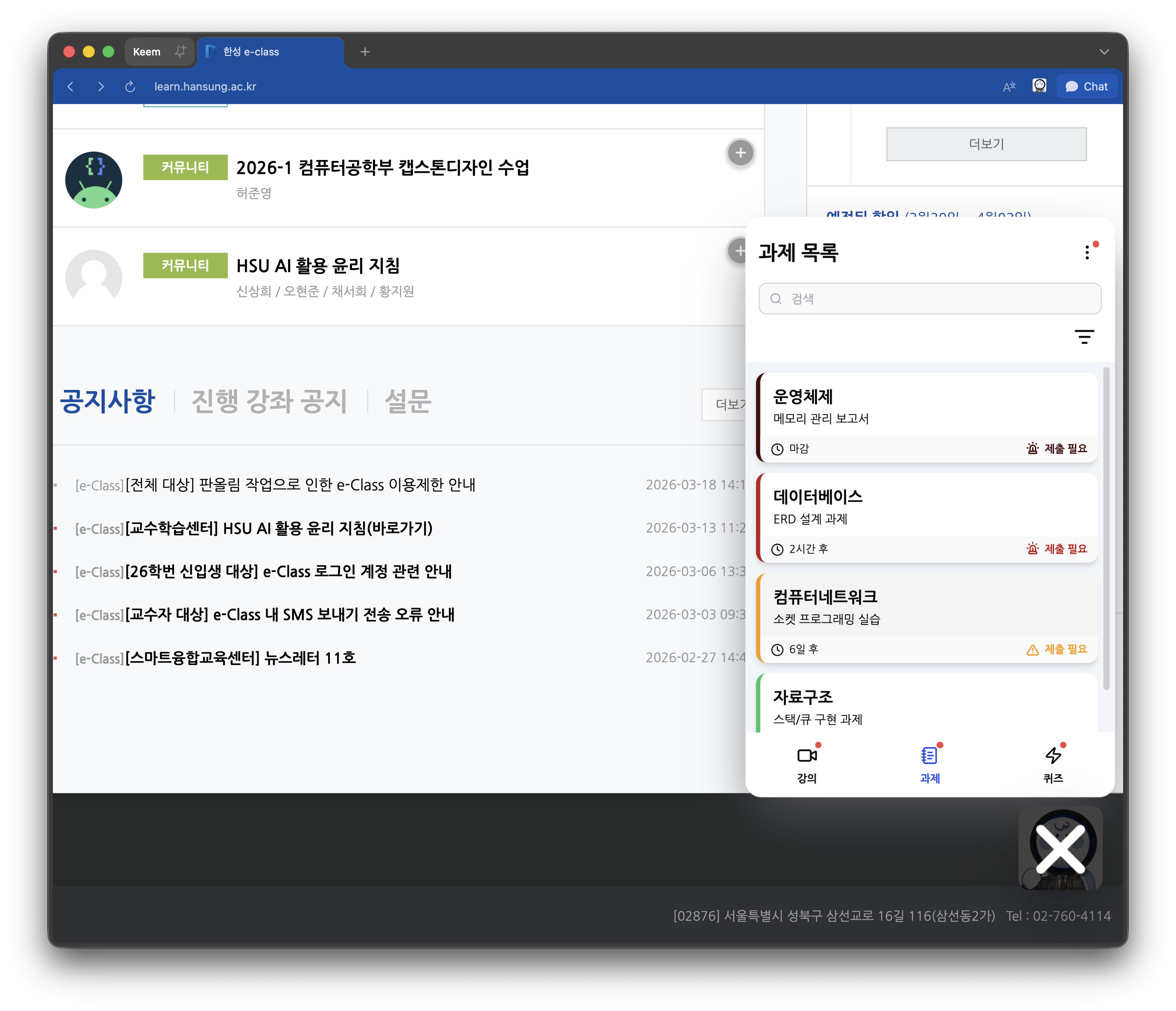
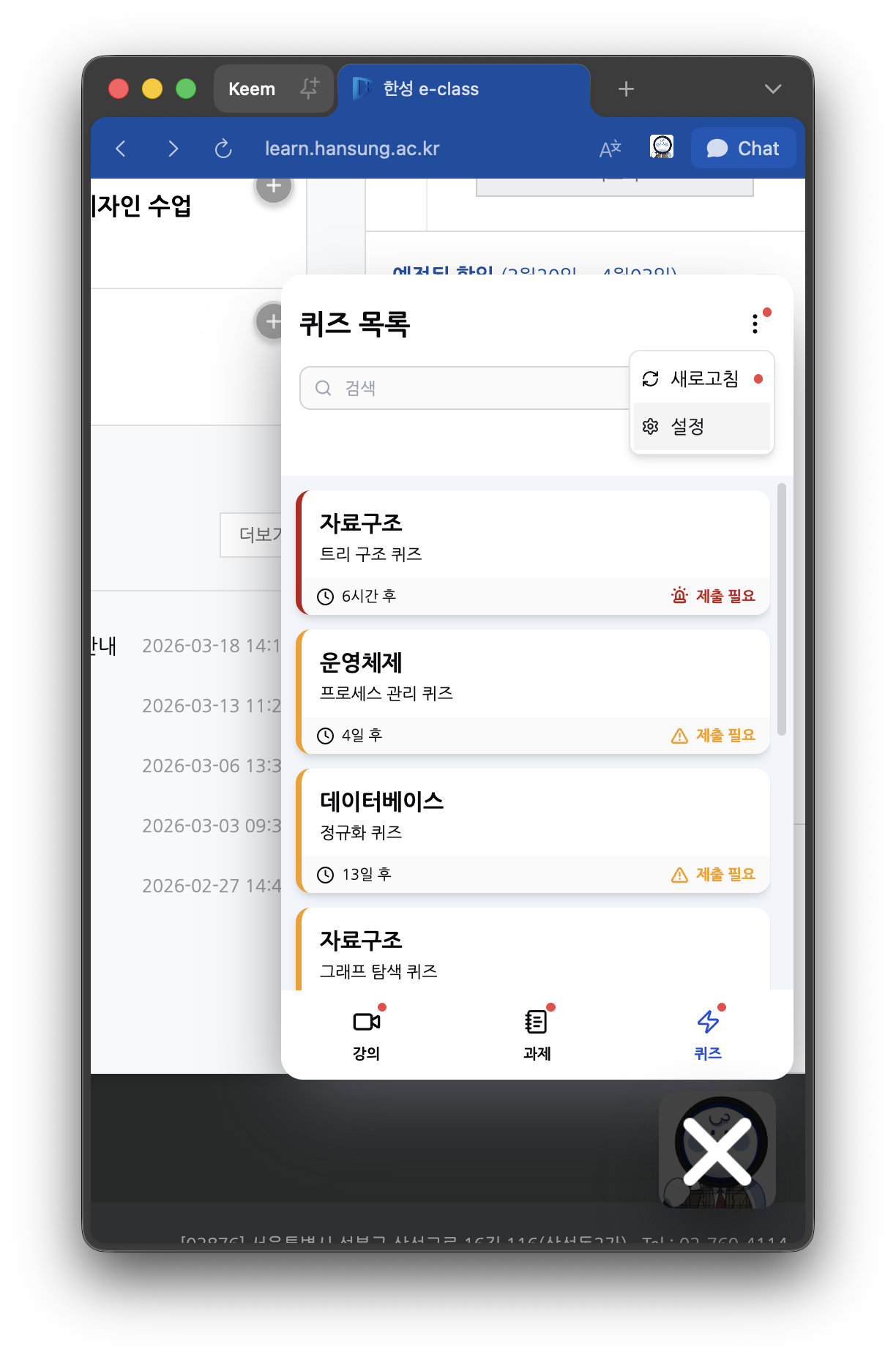
The dashboard consists of 3 tabs: Online Lectures, Assignments, and Quizzes.
Each card displays the course name, title, and deadline, with colors that change based on status.
Online Lectures
| Badge | Meaning |
|---|---|
| Attended | Watching completed |
| Watching · In 11 days | Partially watched |
| Not Watched · In 6 days | Not watched |
| Absent | Past due |
Assignments / Quizzes
| Badge | Meaning |
|---|---|
| Submitted | Submitted/taken |
| Not Submitted · In 6 days | More than 1 day until deadline |
| Not Taken · In 23 hours | Less than 24 hours remaining |
| Not Submitted (Closed) | Past due |
Clicking a card navigates directly to the corresponding lecture/assignment/quiz page.
Data is automatically refreshed every hour, and also refreshes immediately when you return to the tab after more than an hour away. To refresh manually, click ⋮ Menu → Refresh in the top-right corner. A red dot on the ⋮ button indicates the data is stale.
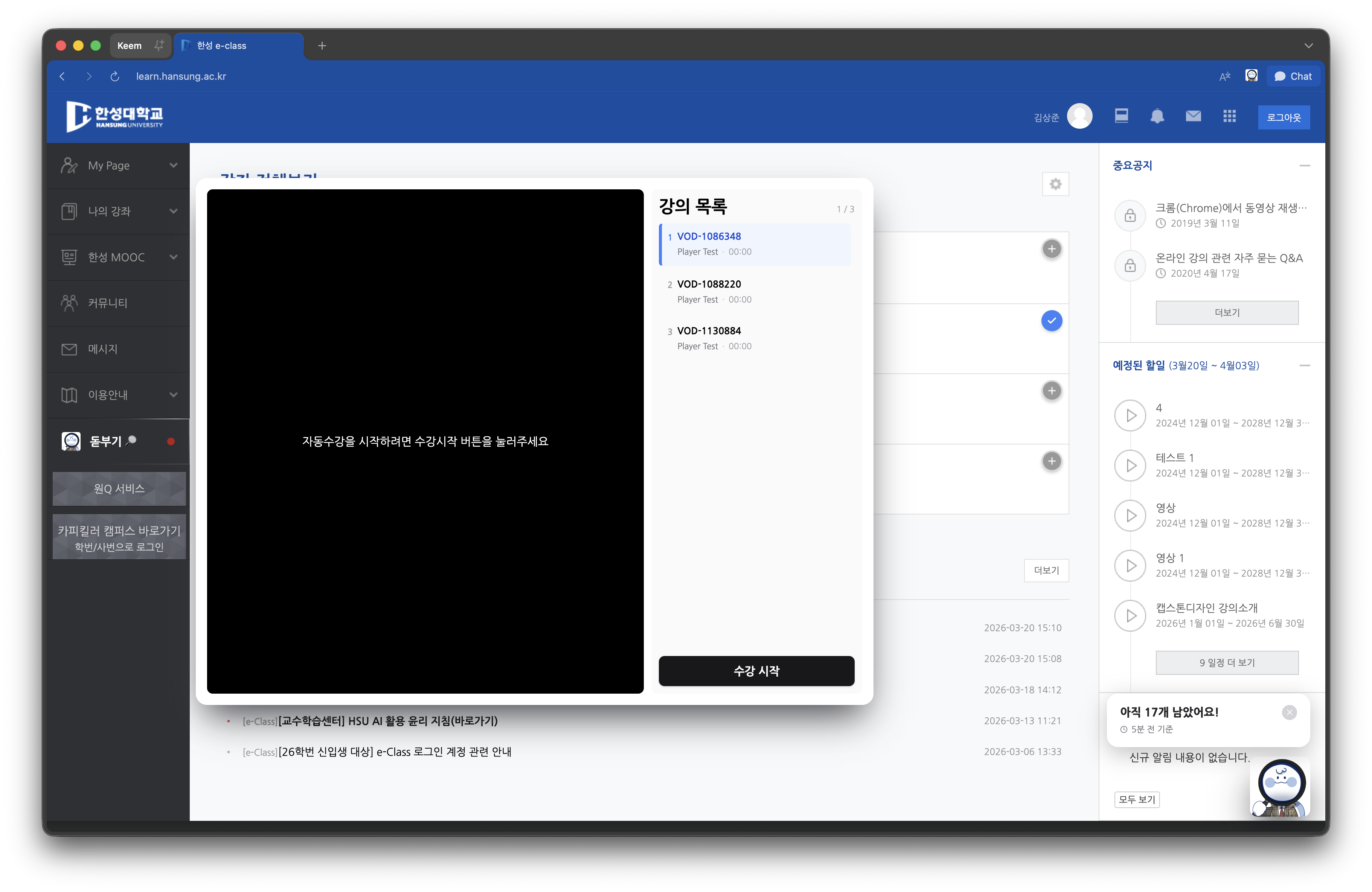
Auto-Play Player
The sidebar that appears on the left side of the course page lets you automatically play unwatched lectures in sequence.
- Click the Dotbugi trigger on the left side of the course page.
- Press the Start Playing button to begin auto-playing from the first unwatched lecture.
- When all lectures are finished, it will be marked as "Completed".
Does this affect attendance recognition?
Dotbugi's auto-play works at normal speed (1x) without any speed manipulation or video tampering. It operates exactly the same as manually pressing the play button, so it fully meets the LMS attendance criteria (90% or more of playback time). It is fundamentally different from external speed-up programs, so you can use it with confidence.
Change Language
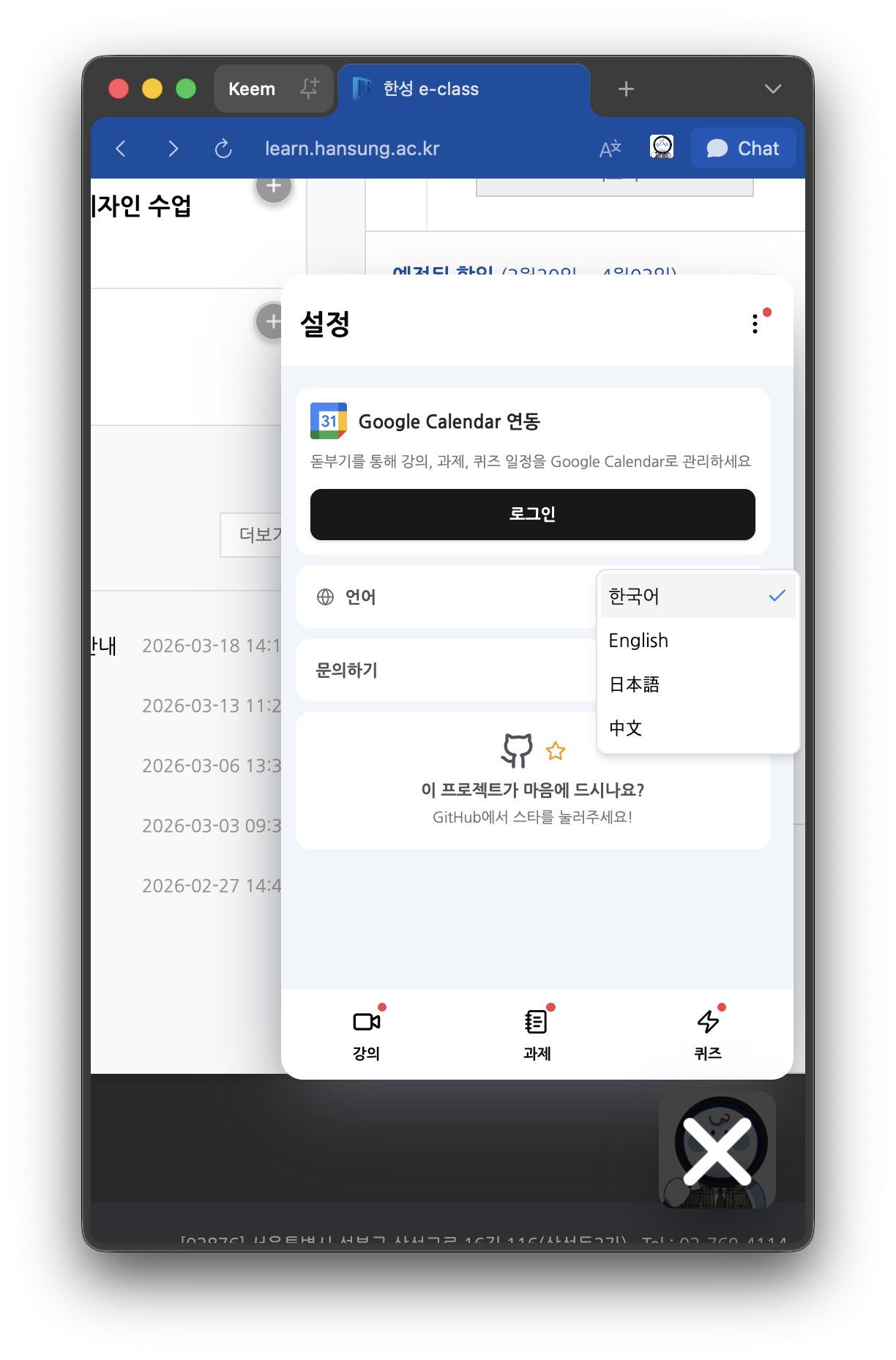
You can choose from Korean, English, Chinese, or Japanese in the Settings tab.
 |  |