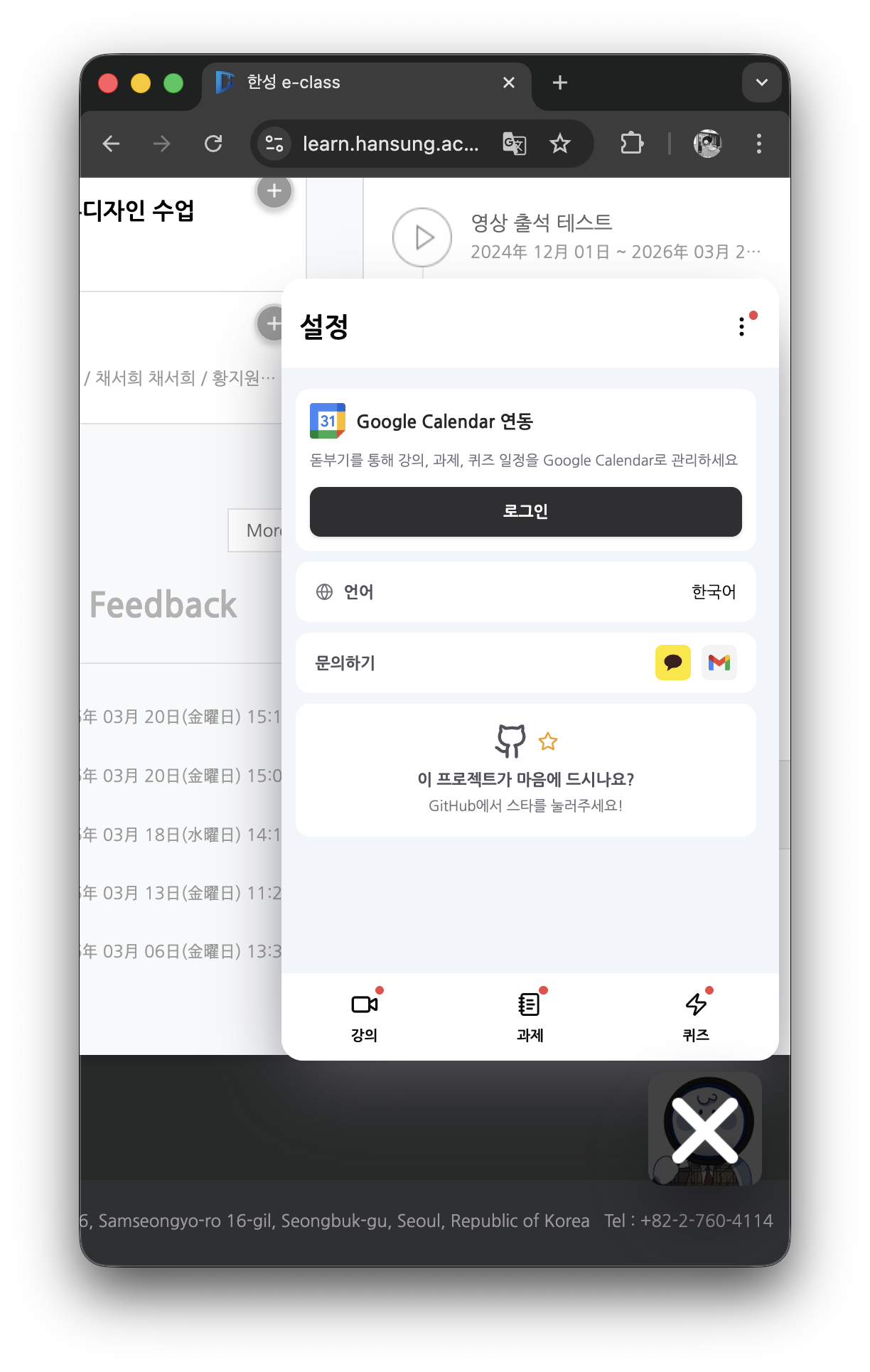
Google Calendar Integration
Connect
- Open the Settings tab in the dashboard.
- Click the Login button under "Google Calendar Integration".
- Log in with your Google account to complete the integration.
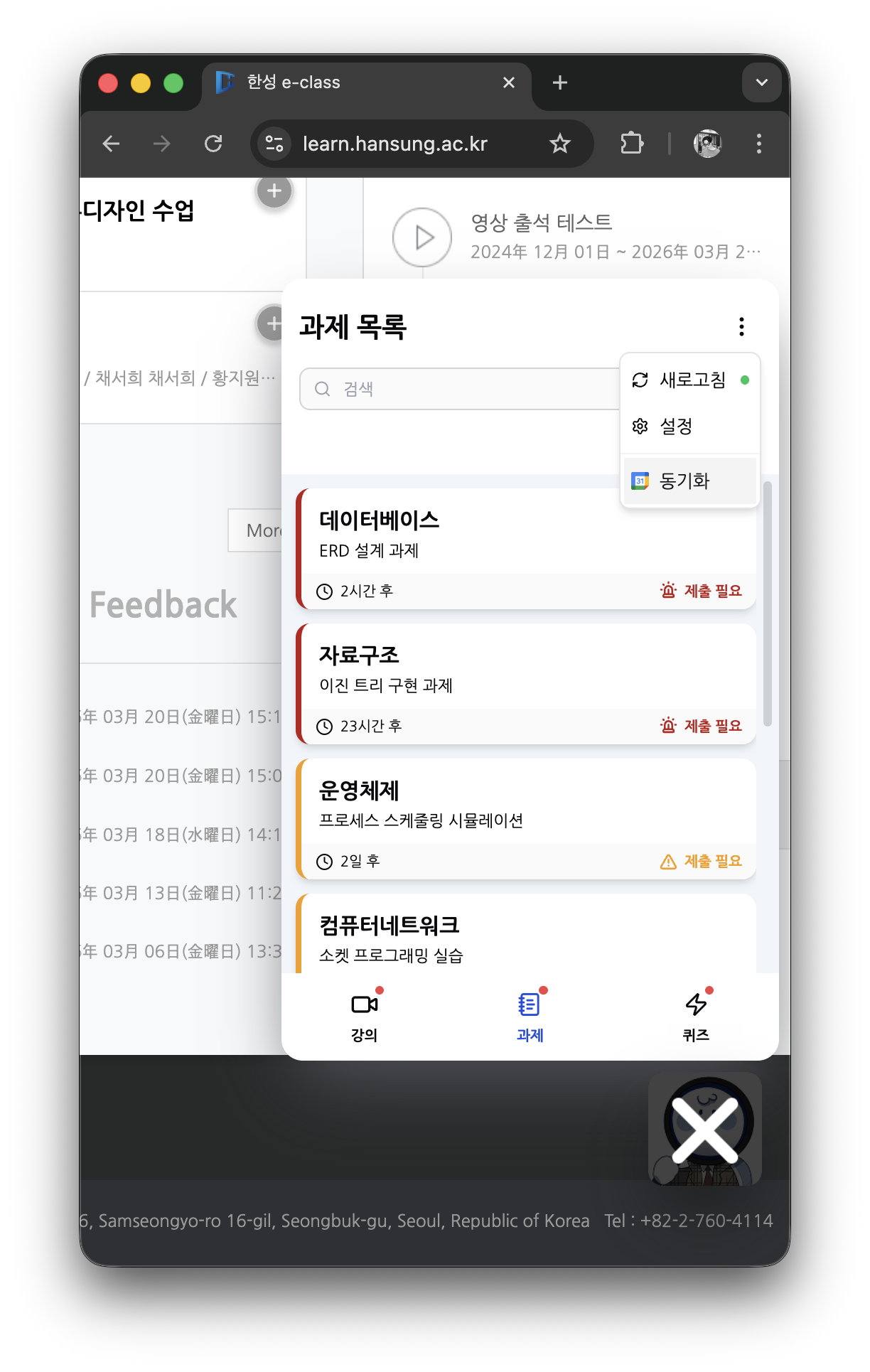
Sync
After connecting, press the Sync Tasks button in the dropdown menu to add tasks to Google Calendar.
Sync result notifications:
- "N events have been added" — New items were added
- "Already up to date" — No items to add
- "Failed to add N events" — Some items failed
Calendar Color Coding
| Color | Item |
|---|---|
| Lavender | Online Lectures |
| Blue | Assignments |
| Orange | Quizzes |
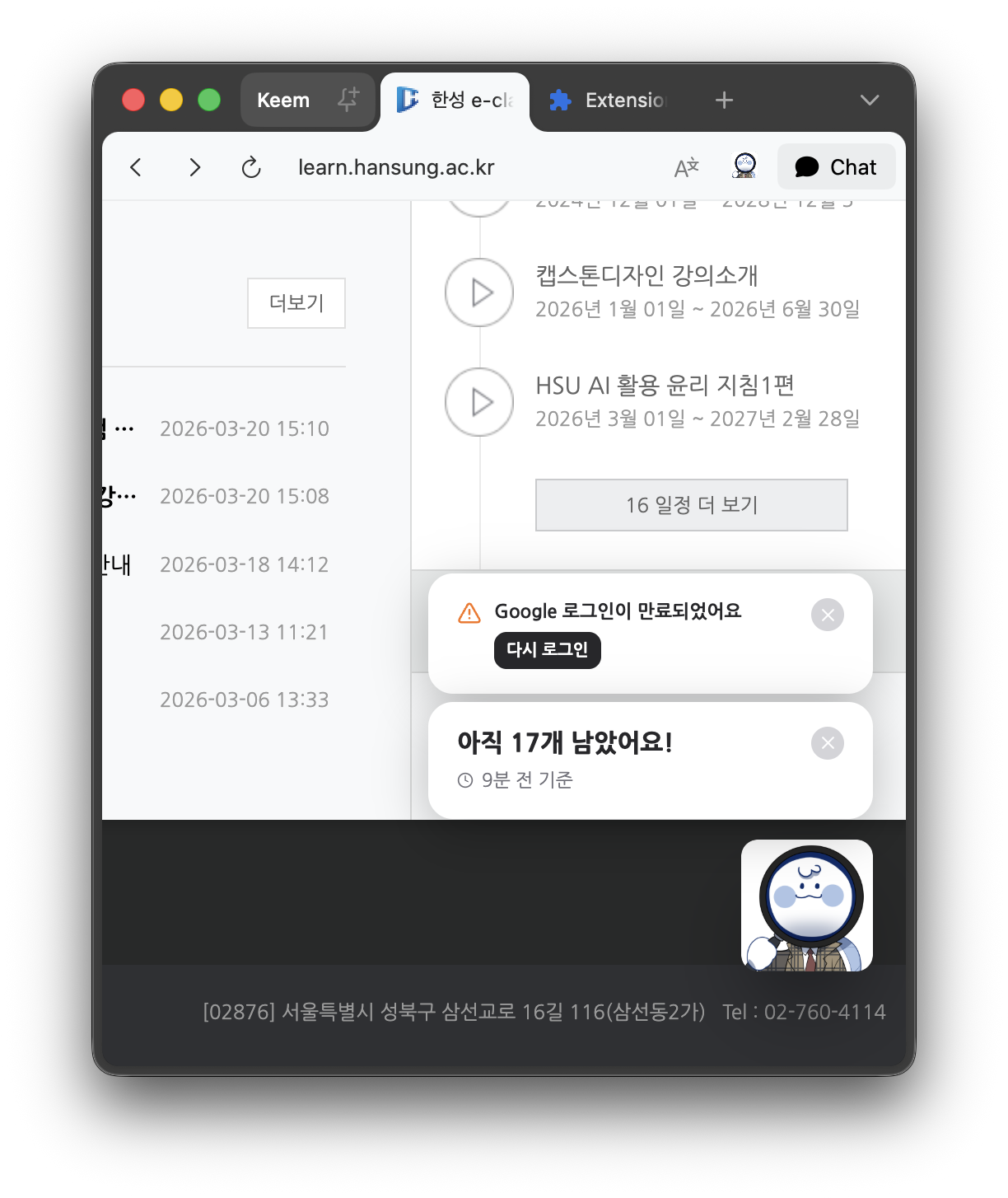
Login Expiration
A notification is displayed when your Google login expires. Click the "Log in again" button to reconnect.
Disconnect
Click the Logout button in the Settings tab to disconnect the integration.